
How Bridge Mode works
Benefits, records, boundaries and direct answers.
Set up Bridge Mode to communicate through The Coparent App when the other parent uses email instead of the app.
You need a registered The Coparent App account and an unpaired family workspace. The workspace owner can enable Bridge Mode. Keep the other parent’s correct email address ready and check any legal or safeguarding arrangements that apply to communication in your case.
On the unpaired home screen or Parent Link page, choose Use TCA in Bridge Mode™. If you already sent an invitation, review the warning and confirm only if you want that link to stop working. Bridge Mode keeps linking available for later.
Open Profile & Settings. Enter a private display name for the other parent and their current email address. Choose a 3–30 character username for your @bridge.thecoparent.app address. Wait for the availability check, then select Save profile & settings.
Open Messages, write a clear child-focused message and send it. If your account has AI assistance enabled, review the suggested wording before sending. The server resolves the recipient from your saved Bridge profile; the app does not ask you to type an email address for each message.
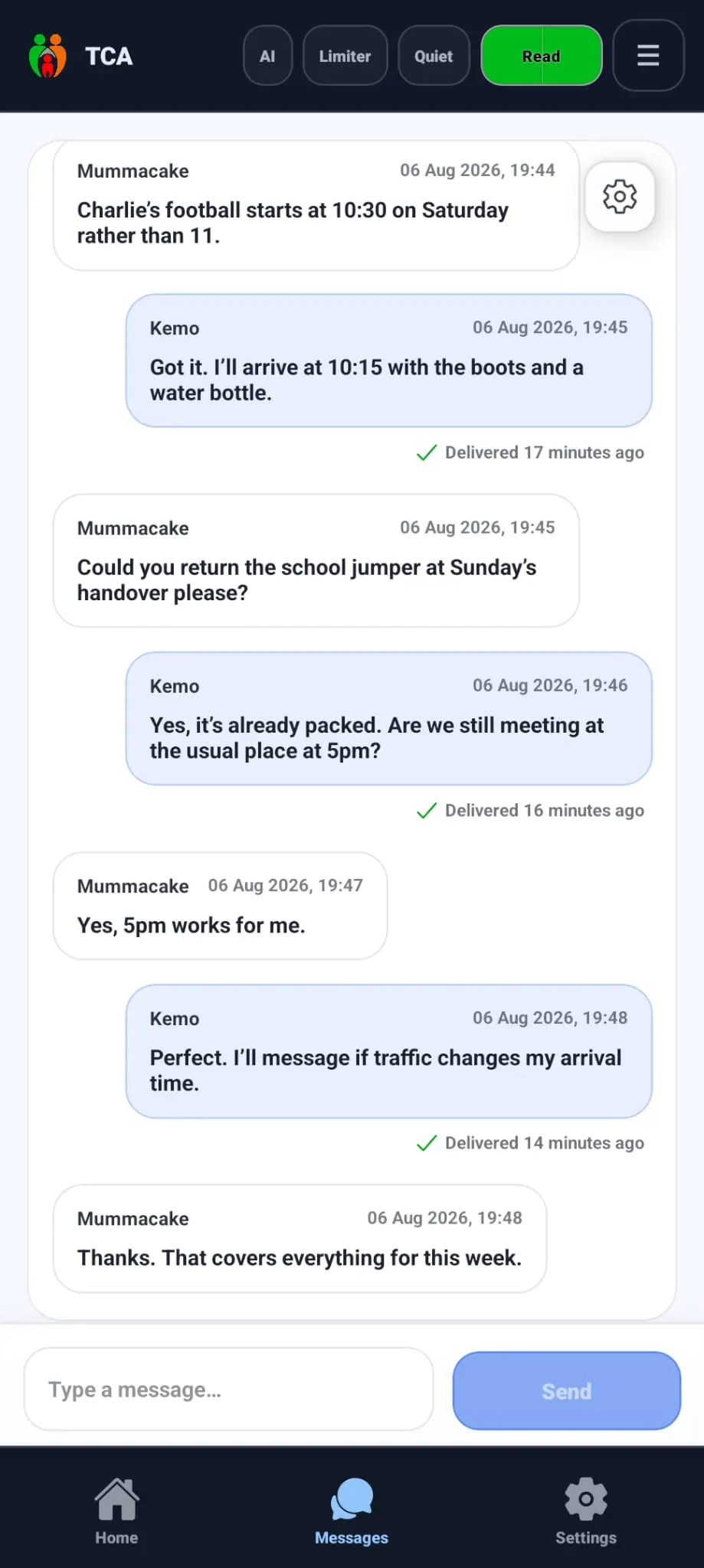
The message arrives from your registered Bridge address with a subject that identifies it as a message from you via The Coparent App. The email footer explains that the recipient can reply to respond. They do not need to install the app or create an account.
When the other parent replies, Bridge Mode adds their newly written text to the chronological conversation. Repeated quoted email history is removed from the conversation view. The underlying original email remains separate from the simplified display used in the app.
You can attach up to ten supported files to one Bridge message, with a maximum of 4 MB per file. Supported types include JPEG, PNG, GIF, WebP, PDF, plain-text and CSV. Incoming email attachments are preserved with the email evidence and become available in the app only after the service’s validation and safety checks.
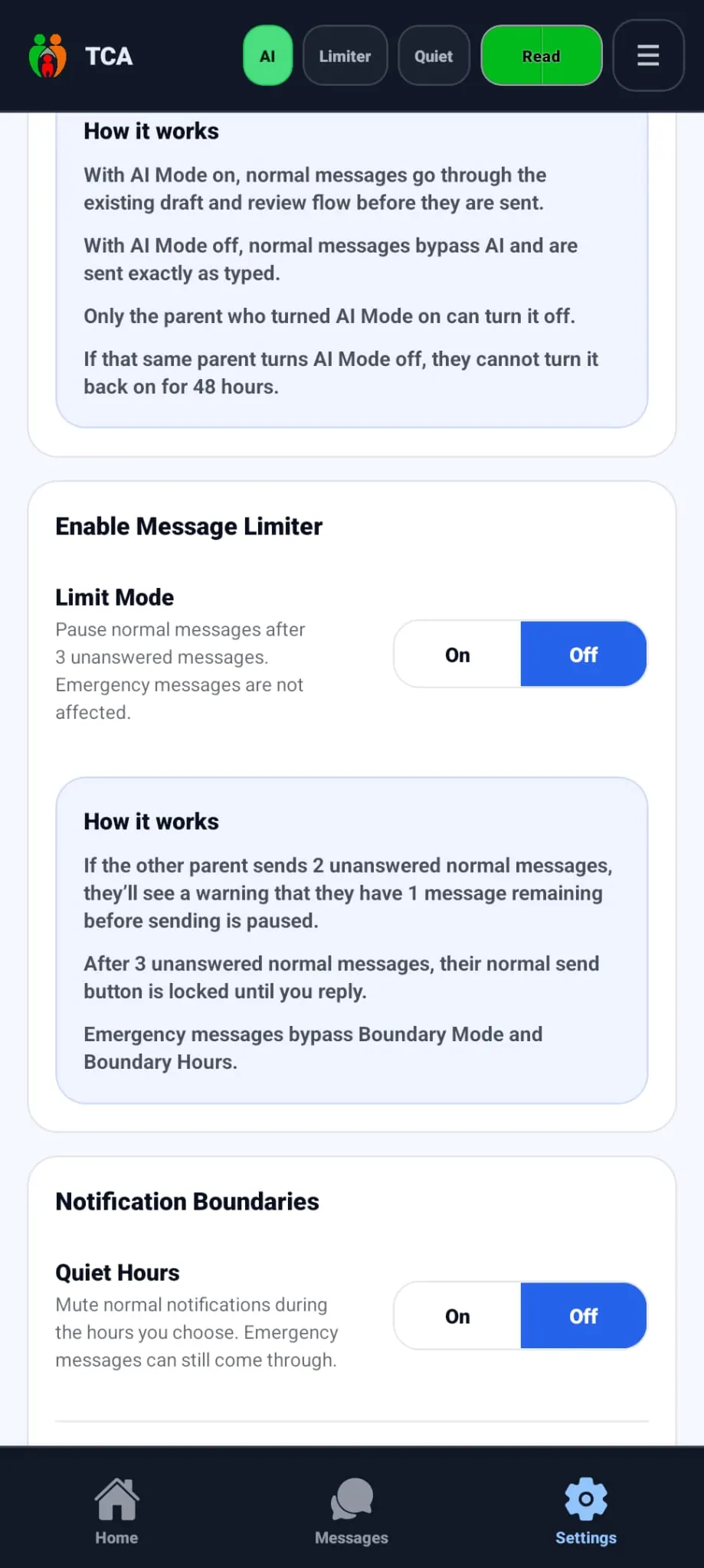
Boundary Mode allows three messages within 24 hours when the other person has not replied. A reply resets the allowance immediately. If the allowance is used, normal sending resumes when the current 24-hour period ends. Do not repeatedly retry during the pause: those attempts are not delivered and may increase the wait.
You can leave Bridge Mode from the account-mode controls. Disabling the mode retains the stable external participant identity so old email evidence keeps the correct attribution if Bridge Mode is enabled again. To use the app together, choose Link another parent in Profile & Settings and follow the invitation steps.
Bridge Mode is available to the owner of an unpaired family workspace. If an invitation is pending, the app asks you to confirm that the invitation should be revoked before Bridge Mode starts. A currently paired workspace must use the separate leave or unlink process.
Choose the address carefully. Once registered, the sender address shown in Profile & Settings is permanent and cannot be renamed. Retaining the address protects reply routing and prevents old addresses being reassigned.
Boundary Mode pauses normal sending after three unanswered messages. A reply resets the allowance immediately. Otherwise sending resumes when the 24-hour period ends. Repeated retries during the pause are not delivered and can lengthen the wait.
Bridge Mode supports up to ten attachments per message, with a maximum of 4 MB each. Supported types include JPEG, PNG, GIF, WebP, PDF, plain-text and CSV files. A file must pass the service’s safety checks before it becomes available.
Yes. Linking remains available from Profile & Settings. Linked-parent mode is free for the second parent while the family workspace has an active subscription, and it adds the full shared in-app experience.
Benefits, records, boundaries and direct answers.
How the three-message allowance protects both sides from repeated unanswered messaging.
Read how account and communication information is handled.
Download or update The Coparent App, sign in and choose Bridge Mode from the unpaired home or Parent Link screen.