The Coparent App logo

The Coparent App

A UK app for separated parents in the UK

Interact with facts, not friction

Unlimited* Storage

Photo and file uploads for sharing plus upload your receipts, handover proof and more.  Receive 5GB then contact us to get free extensions when you need it as nothing can be deleted.

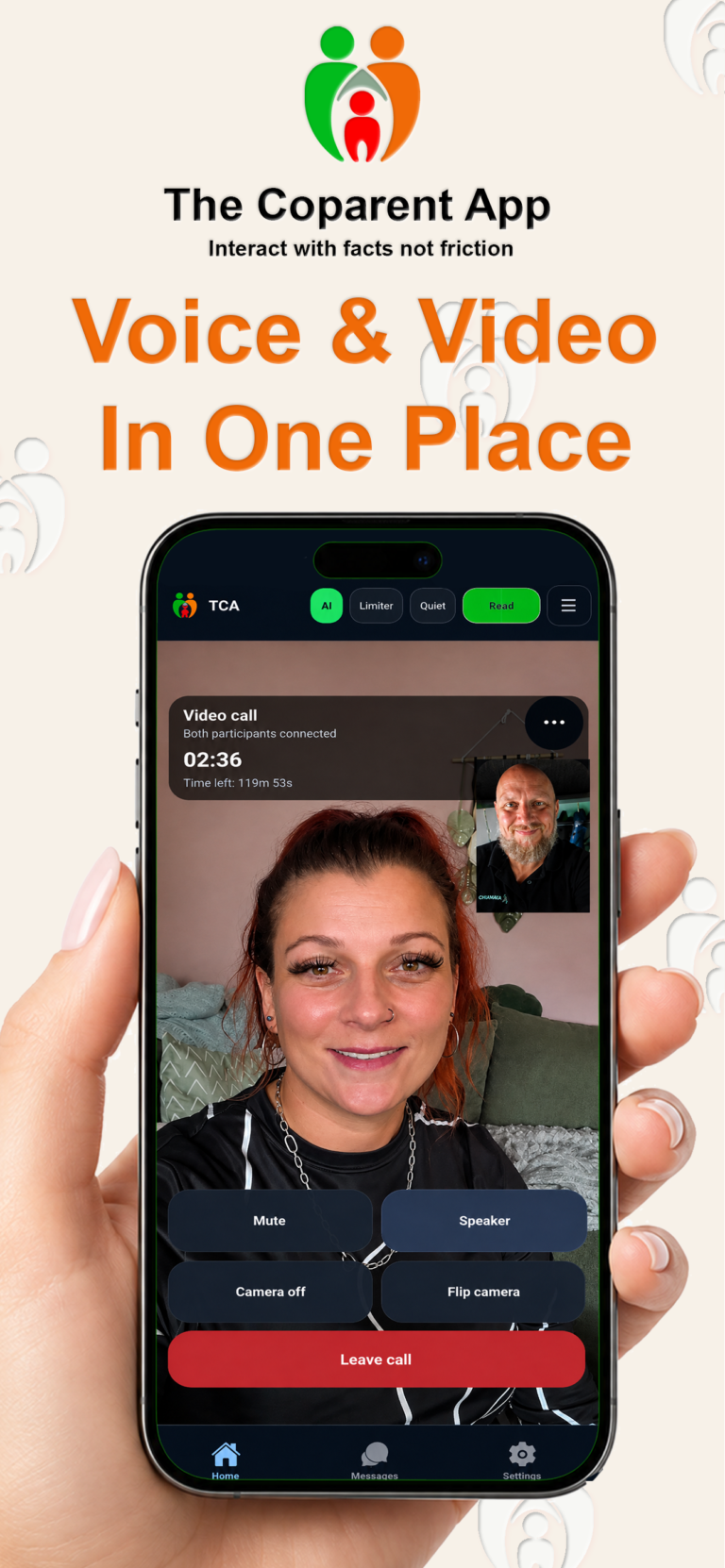
Voice & Video Calling

120 Minutes pre-arranged voice and video contact per month. Calls behave like online meetings to join rather than ringing your phone when you least expect.

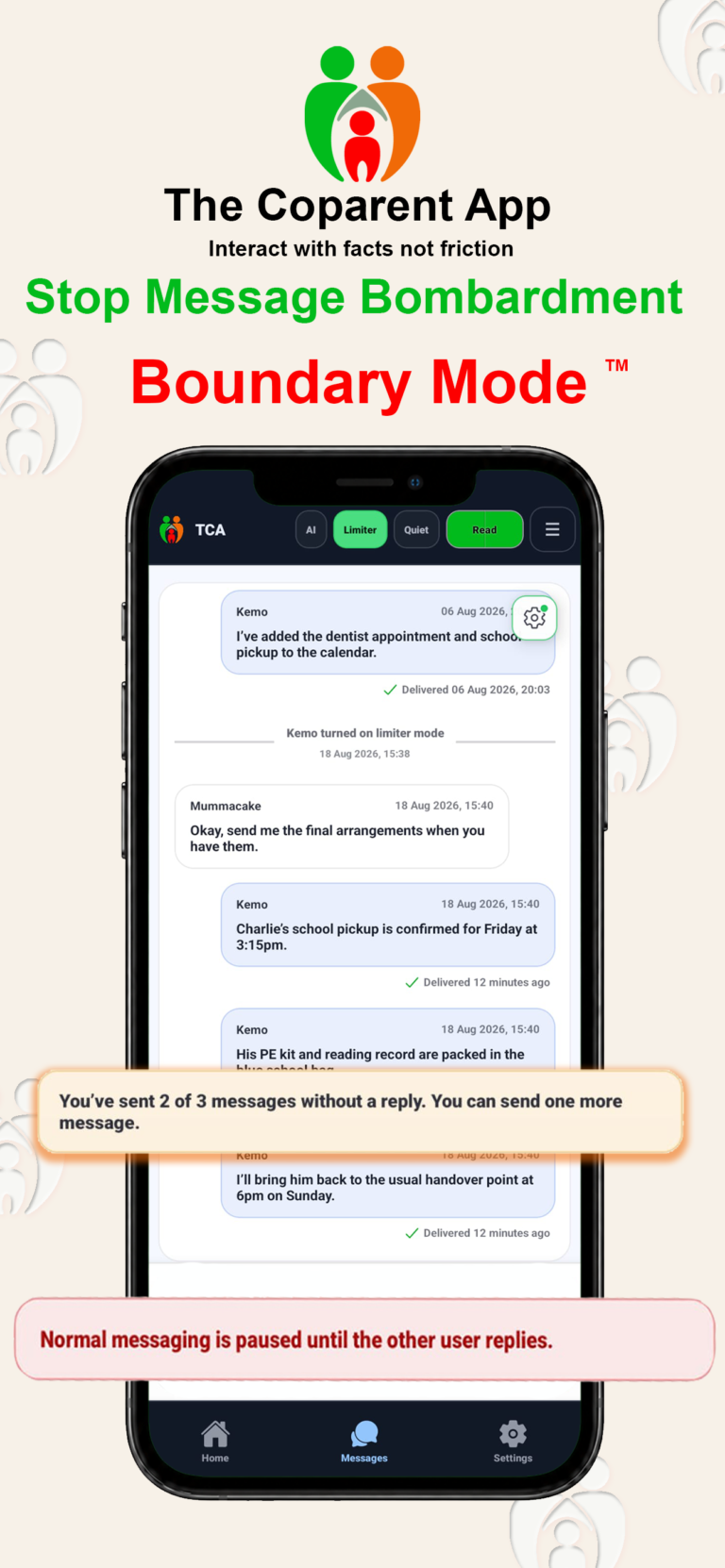
Boundary Mode

Stop bombardments with message limiting.  When enabled, users can only send up to 3 messages without a response.  This has been called a “game changer” by our users.

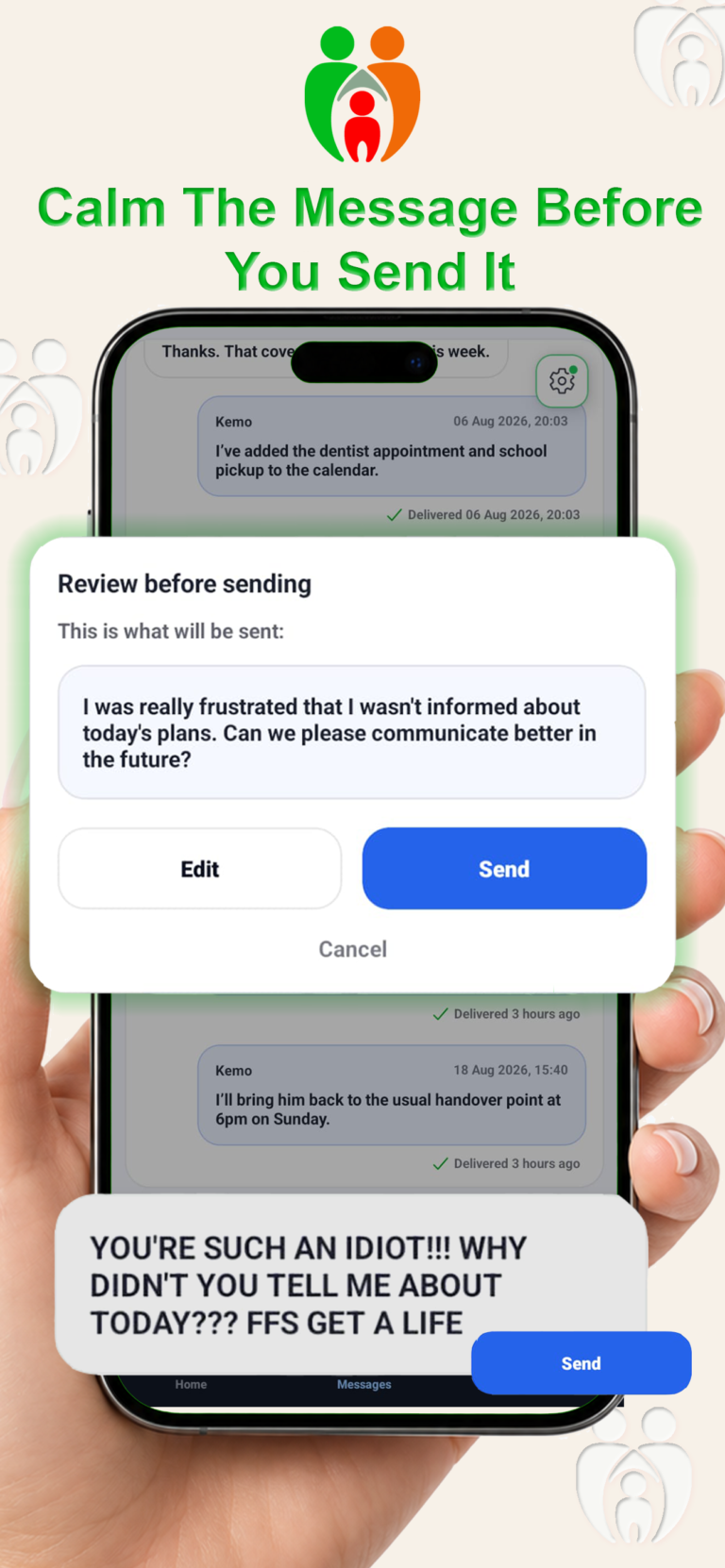
AI Mode

Extinguish inflammatory messages by turning on AI rewrites.  If you’re receiving abusive/irrelevant texts and you want them to stop, this feature forces  all messages to be screened by AI

Shared Calendar

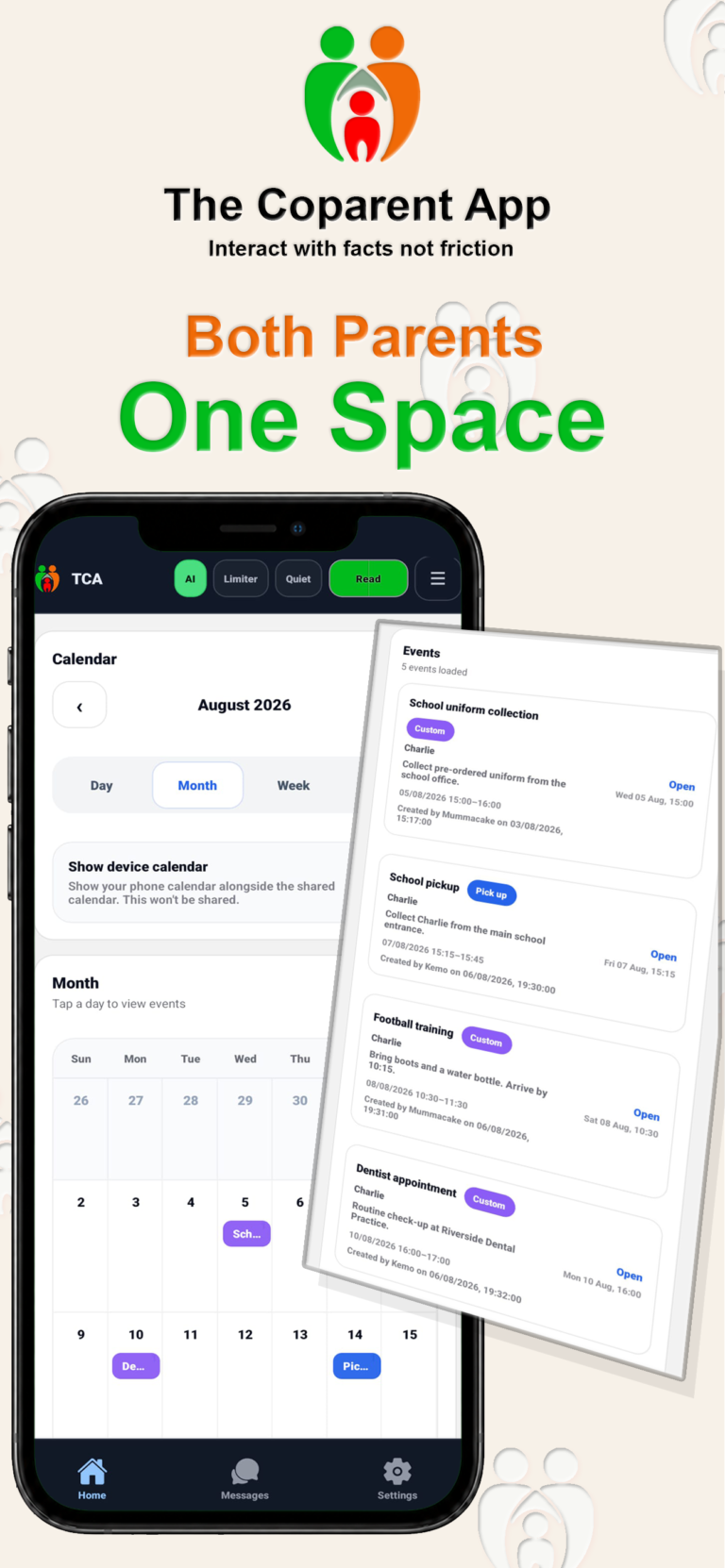
Keep on the same page and mitigate misinterpretation.  Events cannot be deleted but can be cancelled and edited while keeping a record of the original.

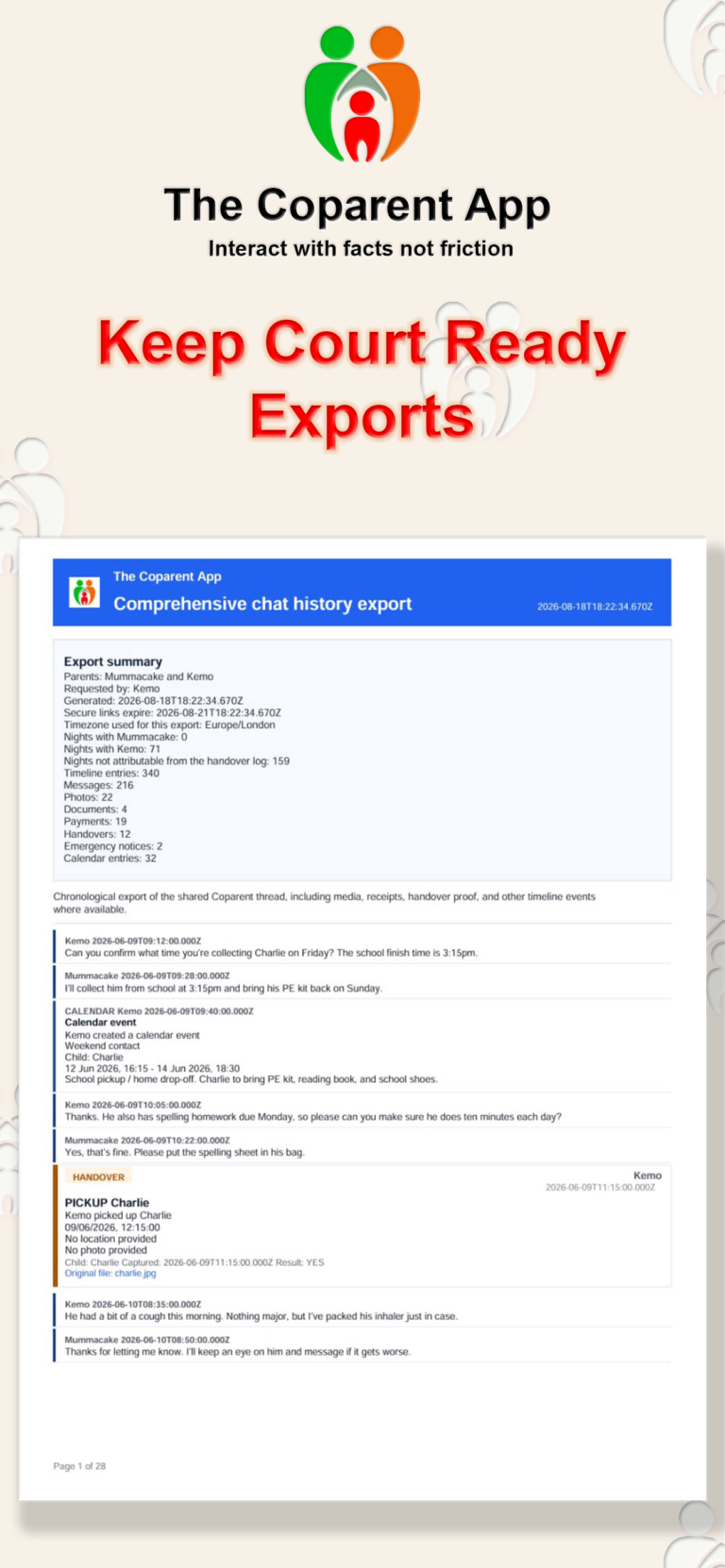
UK Court compliant exports

Download your entire history in an instant to produce in court.  Files are unable to be edited and are sent on request to both users to ensure consistency.

Plue extra tools for calmer, more organised co-parenting


🔕

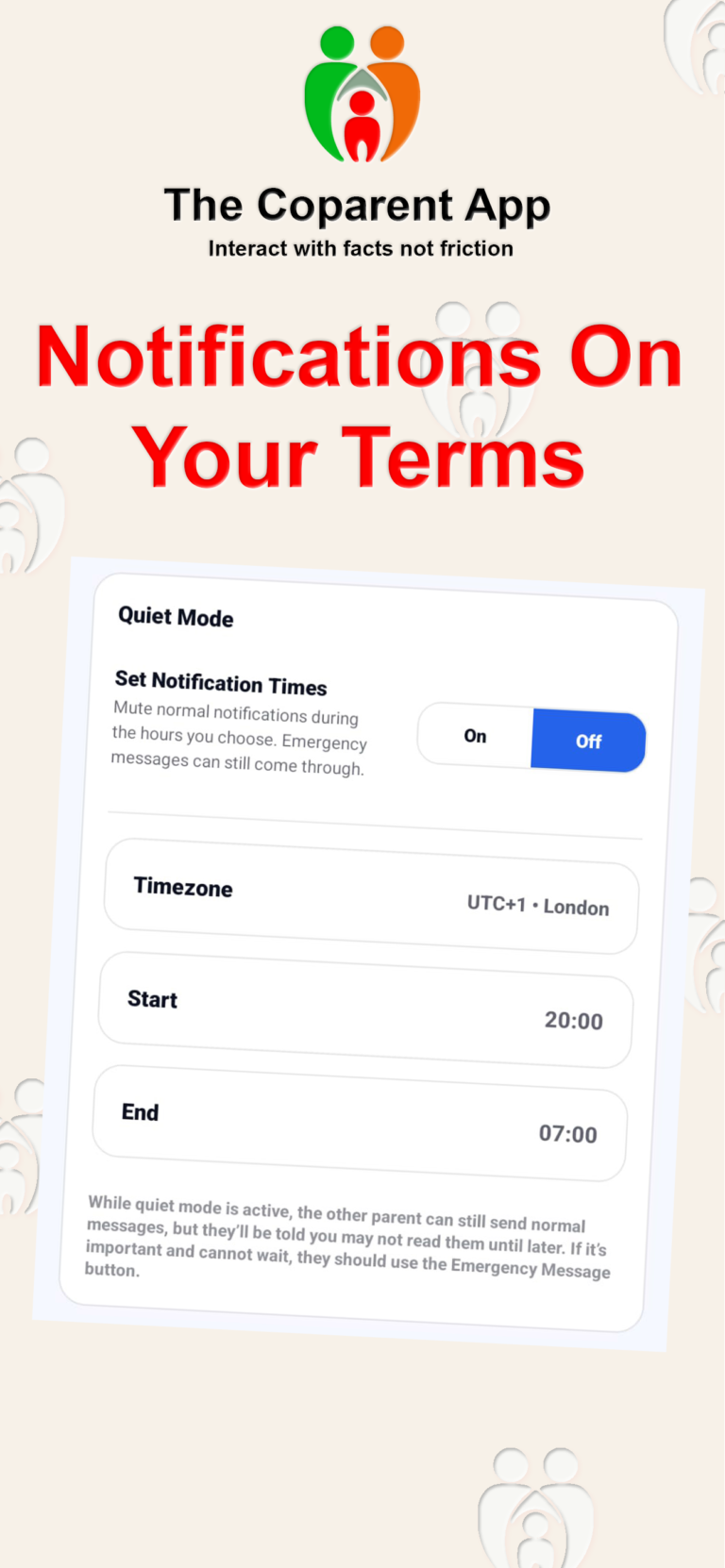
Notification boundaries

An end to messages when you really don’t want them.

👧

Shared child information

Keep track of GP, school, dentist, medical details and other important notes.

📍

Check-in & handover logging

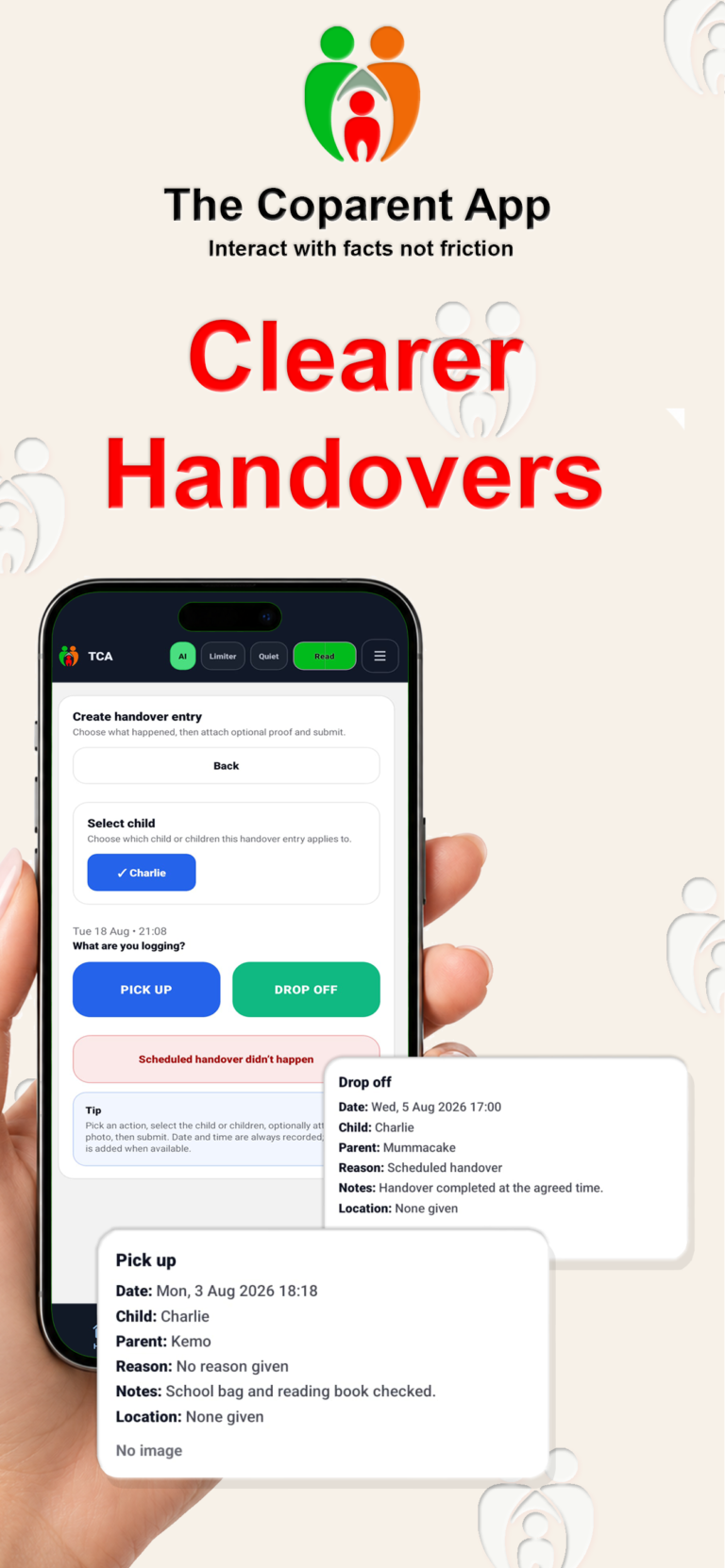
Record handovers with GPS and photo proof, including missed contact logs.

🧾

Payment logging

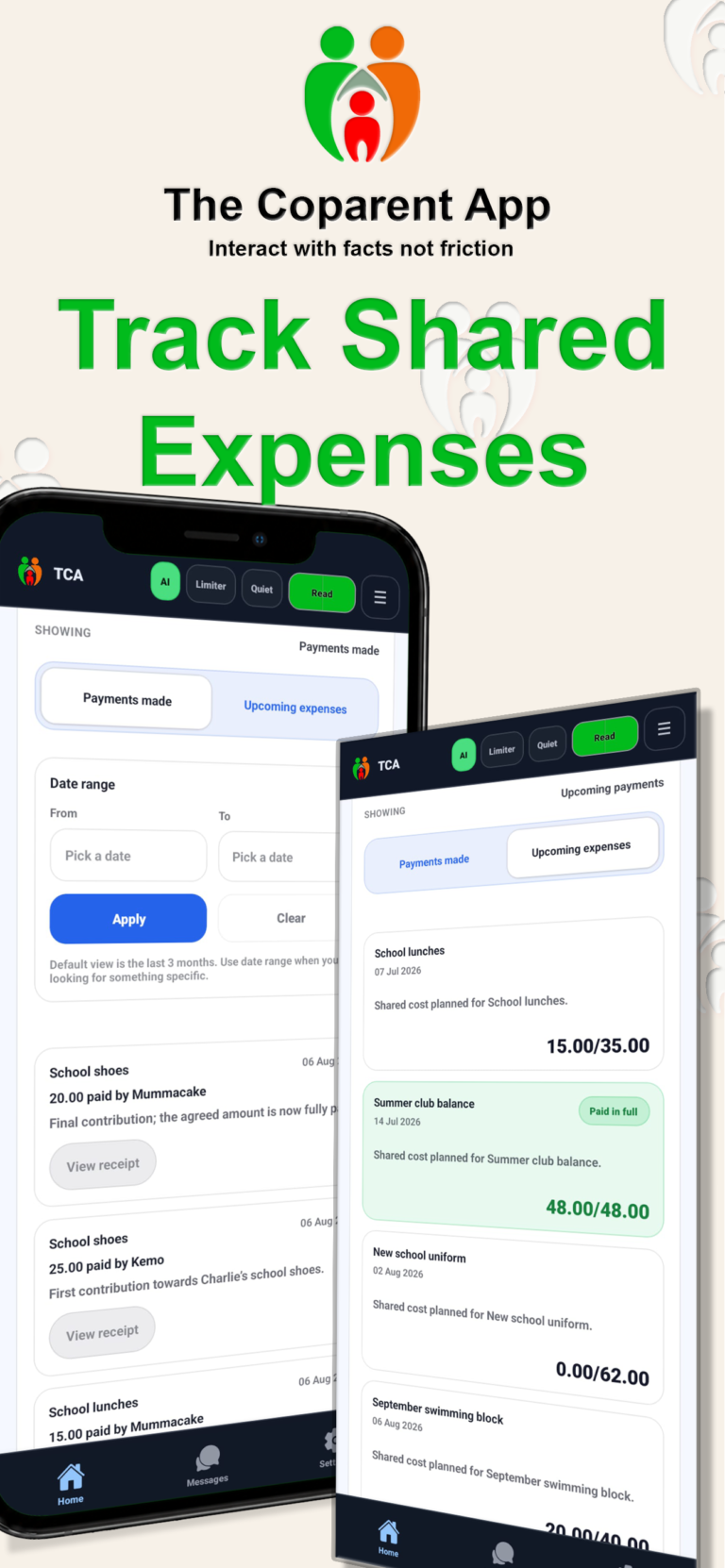
Upload receipts and track shared expenses such as school trips, clubs and activities.

📔

Shared diary

Keep logs of behaviour, meals, sickness and any other appropriate child-related notes.

🤝

Get help section

Access a directory of professional agencies, mediators, contact centres, self-help and charitable support.

📄

Useful forms & planners

Find helpful forms, planners and vouchers in one organised place.

🚨

Emergency contact

Bypass notification boundaries when important messages require immediate attention.

Pricing

Simple plans for families and organisations

Everything needed for calmer communication, clearer records and better co-parenting admin.

For families

Family plan

£9/month

Per family (2 users/parents)

Includes all Coparent features, plus direct access to our WhatsApp UK support line.

For organisations

Bulk access

Custom

Bulk subscriptions available

Flexible pricing for solicitors, mediators, contact centres, charities and support organisations.

User Guide

How to use The Coparent App

A simple guide to using the app for calmer messages, better records, and fewer co-parenting grenade moments.

Quick start

  • Make sure both parents have downloaded The Coparent App.
  • Link the other parent from Settings.
  • Use AI Mode if communication needs help staying calm and clear.
  • Use Boundary Mode if one parent is receiving more messages than they are comfortable with.
  • Use Notification Boundaries / Quiet Mode if you only want to receive notifications during certain times.
  • Use Calendar, Expenses, Documents, Photos, Meetings, and Records to keep shared parenting organised.

Using the app

1. Link the other parent

The Coparent App only works when both parents are using it and are linked into the same shared parenting thread.

The app is available on both Apple and Android devices. Each parent should download the app, create their own account, and use their own device.

  • Go to Settings.
  • Open Link Parent.
  • Enter the other parent’s email address carefully.
  • Send the invite.
  • Ask the other parent to check their inbox and follow the instructions.
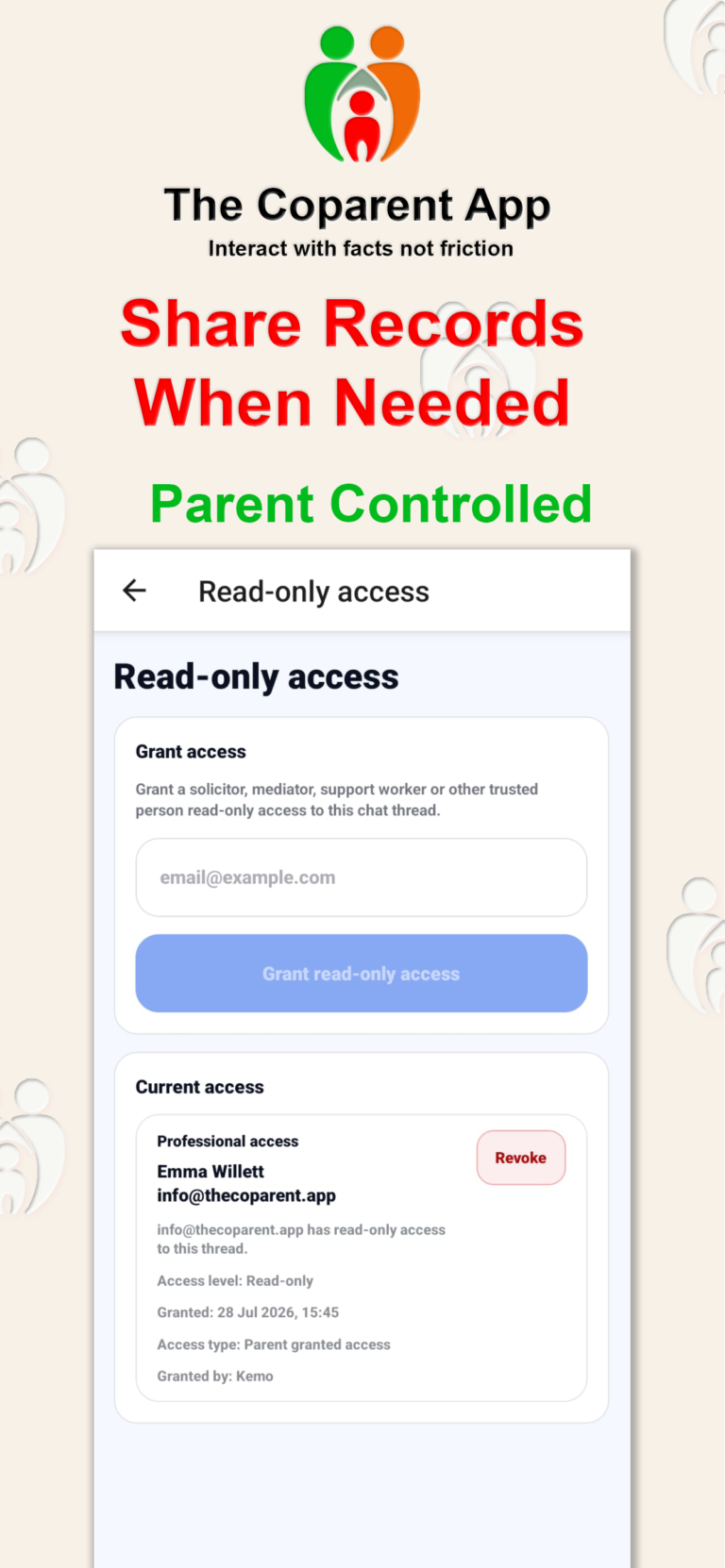
You can only link one other parent. This helps keep the communication record clear and avoids other people being added into the parenting conversation.
If the other parent does not receive the invite, ask them to check their spam or junk folder. If there is still a problem, contact support.
2. AI Mode

AI Mode is there to help when communication between parents is difficult, stressful, or includes language that one parent is not comfortable with.

When AI Mode is turned on, both parents will have their draft messages checked by the app’s AI model before sending. If needed, the AI will suggest a calmer, clearer version of the message.

  • Both parents can edit their message as many times as they want before choosing to send it.
  • The AI does not send messages automatically. The final decision to send always stays with the user.
  • Draft messages are not stored as part of the parenting record.
  • Drafts are only used temporarily so the AI can understand the context while helping with the rewrite.
  • Draft messages are not included in exports.
Only the person who turns AI Mode on can turn it off.
If AI Mode is turned off, the person who turned it off cannot turn AI Mode back on again for 48 hours. During that cooldown period, the other parent still has the option to turn AI Mode on if they feel it is needed.
AI Mode is not there to remove meaning or stop someone raising an issue. It is there to help make messages easier to read, less inflammatory, and more focused on the child.
3. Boundary Mode

Boundary Mode is there for situations where one parent is receiving more messages than they are comfortable with.

When Boundary Mode is turned on, both users can only send up to 3 messages until a response is received. Once the other parent replies, the 3-message counter resets.

  • Boundary Mode helps stop one parent being overwhelmed by repeated messages.
  • It encourages both parents to think more carefully before sending.
  • Only the person who turns Boundary Mode on can turn it off.
If Boundary Mode is turned off, the same person cannot turn Boundary Mode back on again for 48 hours. During that cooldown period, the other parent can still turn Boundary Mode on if they need to.
Boundary Mode is not about ignoring the other parent. It is about creating breathing room so communication does not become too much, too fast.
Use it when the conversation needs a seatbelt, not a flamethrower.
4. Notification Boundaries / Quiet Mode

Notification Boundaries, also called Quiet Mode, let a user choose when they do and do not want to receive notifications from The Coparent App.

This is useful if messages from the other parent are affecting sleep, work, lunch breaks, family time, or any part of the day where notifications are becoming stressful or disruptive.

  • The user can choose the times when notifications are allowed.
  • Outside those selected times, normal message notifications will be muted.
  • Messages are still kept in the app and can be read later.
  • Quiet Mode does not delete messages, block the other parent, or stop the parenting record from being created.
The exception is emergency communication. If a message is sent through the Emergency section, the user will still receive a notification even during Quiet Mode.
This helps users protect their own time and wellbeing while still allowing urgent messages to get through when genuinely needed.
5. Calendar and events

Use the calendar to keep shared parenting dates in one place.

  • Handovers
  • School events
  • Medical appointments
  • Birthdays
  • Holidays
  • Clubs and activities
  • Important deadlines
  • Meetings or parenting discussions
Tap a day to view events for that date or add a new event.
When adding an event, include enough detail so both parents understand what it is, when it is happening, and whether anyone needs to do anything.
Example: “Dentist appointment — Tuesday 9 July, 3:30pm, High Street Dental Practice. Please bring the NHS form.”
Keeping events in the app helps avoid messages getting buried or plans being remembered differently later.
6. Expenses and payments

Use Expenses to keep a clear record of child-related costs.

  • School uniform
  • School trips
  • Clubs or activities
  • Childcare costs
  • Agreed shared purchases
  • Receipts for child-related items

When adding an expense, include:

  • What the expense was for
  • The amount
  • The date
  • Any notes needed
  • A receipt or supporting photo, if available
Keep expense records polite and factual. The aim is to make costs clear, not to start a separate financial boxing match in the notes section.
7. Documents and photos

Use Documents and Photos to store useful parenting records so they can be found later.

  • School letters
  • Medical information
  • Appointment letters
  • Receipts
  • Handover-related photos
  • Important forms
  • Child information documents
  • Evidence of agreed arrangements, where appropriate

Photos can also be used in a positive way. Parents may want or need to share pictures of their child, especially where a court order includes photo sharing or regular updates.

Only upload things that are relevant, safe, and appropriate to share.
Do not upload anything abusive, threatening, private without good reason, or unrelated to parenting. If a document or photo could put someone at risk, do not upload it.
This section should be used for important records and appropriate photo sharing, not as a dumping ground for every screenshot ever taken since 2014.
8. Meetings instead of calls

Meetings are designed mainly for contact between a child and parent, not for adults to use as an alternative to written communication.

Adult communication should normally stay in the chat so there is a clear written record of what was said and agreed.

The reason these are called meetings, rather than normal calls, is that they are arranged. One user cannot simply call again and again until the other person answers. Both parents should know when the meeting is expected to happen.

Meetings can be used for:

  • Parent and child voice contact
  • Parent and child video contact
  • Agreed contact times
  • Contact arranged under a parenting plan or court order

The app does not include call recording. Adding built-in recording would increase the cost of the app for something many phones can already do natively, depending on the device and local rules. Users are responsible for following any laws or court orders that apply to recording calls.

  • The monthly call allowance is 120 minutes across voice and video meetings.
  • The time starts counting down as soon as one person starts the meeting.
  • If someone repeatedly starts meetings without the other person joining, they will use up their own monthly allowance.
If a court order states that more than 120 minutes of call time is required each month, users can contact support and ask for the allowance to be updated to accommodate the order.
Repeatedly starting meetings without agreement will not force the other parent to answer, but it will use up the monthly allowance.
9. Journal, check-ins, and records

Use Journal, Check-ins, and Records to keep track of important parenting information over time.

  • Concerns
  • Behaviour changes
  • Health updates
  • Emotional wellbeing
  • Handover notes
  • Missed arrangements
  • Follow-ups needed
  • Patterns that may be important later
Keep records dated, factual, and specific.
Helpful example: “Monday 8 July — Reuben was upset after handover and said he was tired. He ate dinner normally and settled by 8:30pm.”
Less helpful example: “Other parent has clearly ruined everything again.”
Understandable? Maybe. Useful record? Absolutely not.
What not to use The Coparent App for

The Coparent App is not for emergencies, abuse, harassment, or legal advice.

  • Emergencies — call emergency services.
  • Threats or abuse.
  • Harassment.
  • Stalking or intimidation.
  • Anything that puts you or your child at risk.
  • Legal advice.
  • Medical advice.
If you need legal information or support, use the Get Help section of the app. It contains useful information and contacts that can help users find proper legal advice and support.
If you need medical advice, speak to a qualified healthcare professional.
If you or your child are in immediate danger, contact emergency services.
If you feel unsafe, stop using chat and contact the appropriate support service.
The app is there to support safer, calmer communication. It is not there to manage crisis situations.
If something goes wrong

If you have trouble with login, linking, missing messages, uploads, calendar events, meetings, or a feature not loading, contact support.

When contacting support, include:

  • What you were trying to do
  • What happened instead
  • When it happened
  • Your account email
  • Screenshots, if safe to share
  • The device you are using, if relevant
The more detail you include, the easier it is to investigate the problem.
Please do not include sensitive information unless it is needed to understand the issue.

Good co-parenting habits

  • Keep messages short, clear, and child-focused.
  • Use dates, times, and specific details.
  • Avoid sarcasm, insults, accusations, and old arguments.
  • Do not reply immediately when angry.
  • Use AI Mode when communication needs help staying calm and clear.
  • Use Boundary Mode when message volume becomes uncomfortable.
  • Use Notification Boundaries / Quiet Mode to protect sleep, work, family time, or other parts of the day.
  • Use records and uploads for facts, not point-scoring.
  • Use meetings for child contact, not avoidable adult arguments.

The aim is not to “win” the chat. The aim is to make parenting logistics easier, clearer, and safer for the child.

Support

If something does not look right, contact support and include as much useful detail as possible.

  • Login problems
  • Account issues
  • Linking problems
  • Missing messages
  • Upload problems
  • Feature errors
  • Subscription or billing questions
  • Meeting allowance questions
  • Technical issues

Contact

Want to talk about The Coparent App?

Whether you’re a parent, solicitor, mediator, contact centre, charity or support organisation, send us a message and we’ll get back to you.

If you are contacting support because a court order requires more than the standard 120 monthly meeting minutes, please include the relevant details so the allowance can be reviewed.